How to Install VietBoost Manually from a ZIP Before It Is Available in the Chrome Web Store
A step-by-step guide to downloading the official VietBoost ZIP, extracting it, enabling Developer mode, using Load unpacked, pinning the extension, signing in, and fixing common installation errors.
Quick answer: While VietBoost is not yet available for direct installation from the Chrome Web Store, you can use the official ZIP package from the VietBoost download page. Download the ZIP, extract every file, open chrome://extensions, enable Developer mode, click Load unpacked, select the folder containing manifest.json, and pin the VietBoost icon to the toolbar. The process normally takes only a few minutes when the correct folder is selected.
This guide is for Google Chrome on Windows, macOS, and Linux desktop computers. It does not require programming, terminal commands, Chrome DevTools, or edits to extension files. The most important safety rule is to download the package only from the official VietBoost download page and keep the extracted directory in a permanent location.
Why does VietBoost currently require manual installation?
The Chrome Web Store is the most convenient distribution channel because Chrome can manage installation and updates. Until the official listing is available, VietBoost provides a ZIP build that can be loaded with Chrome’s built-in Load unpacked workflow.
Manual installation does not mean compiling source code. The ZIP contains the required build. You extract it and point Chrome to its directory. Chrome reads the root manifest.json file to identify the extension name, version, icons, permissions, popup, side panel, and background components.
Because the package is installed outside the Chrome Web Store, only use first-party downloads. Do not install a ZIP forwarded through a chat group, hosted on an unofficial mirror, repackaged by another user, or modified to claim extra capabilities. VietBoost will announce Store availability through the Changelog and official download page.
Before installation: check your device and permissions
- Desktop Google Chrome: mobile Chrome does not provide the same
chrome://extensionsand Load unpacked workflow. - A ZIP extraction tool: Windows, macOS, and most Linux desktops include one by default.
- Permission to enable Developer mode: personal computers usually allow it, while managed work or school devices may block it.
- A permanent directory: Chrome continues reading the unpacked extension from the selected path.
- An internet connection: required for downloading, account linking, and server-resolved entitlements.
A practical path might be Documents/VietBoost Extension on macOS or D:\Apps\VietBoost on Windows. A stable directory makes manual updates and troubleshooting easier.
Step 1: Download the official VietBoost ZIP
Open the official VietBoost extension download page. This should be the first step, not a third-party search result or a shared file.
Chrome normally saves the ZIP in Downloads. Its filename can include the product name and release version, and it may change between releases. Verify that the file:
- was downloaded from VietBoost;
- uses the
.zipformat; - has a timestamp matching your download.
If Chrome or security software displays a warning, verify the source URL before proceeding. Do not disable antivirus protection globally. Download the package again from VietBoost or contact VietBoost Support if the official file is repeatedly blocked.
Step 2: Extract the entire ZIP package
Chrome’s Load unpacked button expects a directory, not a ZIP archive. Extract all files before opening the Extensions page.
Windows
- Open Downloads.
- Right-click the VietBoost ZIP.
- Select Extract All….
- Choose a permanent directory.
- Complete the extraction.
macOS
Double-click the ZIP in Finder. Move the extracted directory to Documents or another stable location before loading it.
Linux
Use Extract Here in your file manager or your preferred ZIP utility. The result must be a normal directory containing the complete extension build.
Do not extract only selected files, delete subdirectories, rename internal assets, or mix files from different releases. Missing JavaScript bundles, icons, HTML pages, or configuration assets can prevent Chrome from loading the extension.
Step 3: Find the directory containing manifest.json
The folder selected in Chrome must contain manifest.json at its root. Selecting the wrong folder level is the most common installation mistake.
vietboost-extension/
├── manifest.json
├── popup.html
├── sidepanel.html
├── assets/
├── chunks/
└── icon/
Supporting filenames can change between builds, but manifest.json must be visible in the directory you select.
Some extraction tools create a nested structure:
vietboost-extension/
└── vietboost-extension/
    ├── manifest.json
    └── ...
Select the inner directory containing the manifest, not the outer folder and not the ZIP archive itself.
Step 4: Open Chrome’s Extensions page
Open a new Chrome tab and enter:
chrome://extensionsNormal websites cannot create a clickable link to a chrome:// address, so paste or type it into the address bar. You can also open the puzzle-piece Extensions menu and choose Manage extensions.
The page lists installed extensions, enabled states, Details, Remove, Errors, and developer controls. Labels may be translated in localized Chrome interfaces, but their function remains equivalent.
Step 5: Enable Developer mode
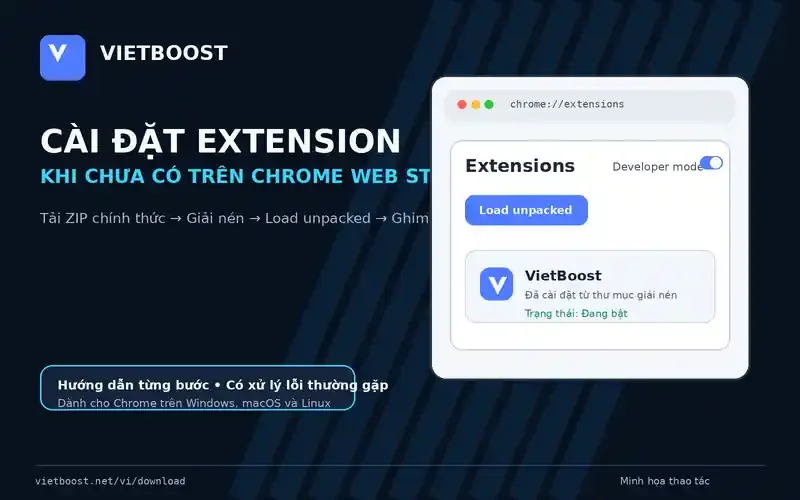
Turn on Developer mode in the upper-right area of chrome://extensions. Chrome will reveal additional buttons, including Load unpacked.
This setting only affects extension management. You do not need operating-system developer settings, Chrome DevTools, Node.js, a code editor, or command-line access.
If Developer mode or Load unpacked is unavailable, check whether Chrome says it is managed by your organization. Corporate and school policies can block unpacked extensions. Use a personal device or contact the administrator; VietBoost cannot bypass organizational Chrome policy.
Step 6: Click Load unpacked and select VietBoost
- Click Load unpacked.
- Navigate to the extracted VietBoost directory.
- Open the directory and verify that
manifest.jsonis present. - Select that directory.
- Click Select Folder, Open, or the equivalent button.
If successful, a VietBoost card appears on the Extensions page with its icon, version, extension ID, enable switch, Details, Remove, and Reload controls. Keep the extension enabled.
If Chrome reports “Manifest file is missing or unreadable,” return to Step 3 and select the directory that directly contains the manifest.
Step 7: Pin VietBoost to the toolbar
Chrome may place VietBoost inside the puzzle-piece menu instead of showing it beside the address bar. Open Extensions, find VietBoost, and activate the pin icon.
Pinning makes VietBoost easy to open while browsing a supported platform. The popup can scan media and display actions allowed by your current entitlement.
If VietBoost is missing from the Extensions menu, return to chrome://extensions and verify that its card exists, the switch is enabled, there are no Errors, and the extracted directory has not been moved or deleted.
Step 8: Open VietBoost and connect your account
Click the pinned VietBoost icon. The first session may ask you to sign in or link the extension to the website so that server-resolved entitlements can be applied. The client does not unlock capabilities merely from a displayed tier name.
- Guest: currently receives free RedNote download access under the active production entitlement.
- Signed-in, linked user: can use enabled supported social adapters and standard download or conversion capabilities allowed by production entitlements. Check the live Supported Platforms page because availability can change.
- Active VIP: receives server-side VietBoost AI and enabled premium, new, or experimental features. Users do not provide OpenAI, Gemini, or DeepSeek API keys to the extension.
If access does not refresh immediately, close and reopen the popup, reconnect when the interface offers that action, or reload VietBoost from chrome://extensions.
How to verify the installation
- Open a platform listed on Supported Platforms.
- Open a public post containing an image or video.
- Click the VietBoost icon.
- Confirm that the extension recognizes the platform and begins scanning.
- If the social tab was open before installation, reload it once so the content script can start.
Not every page on a supported domain contains scannable media. Home pages, sign-in screens, private posts, ads, live content, and region-restricted pages can behave differently. Test a normal public post before diagnosing an installation failure.
Reviewing Chrome permissions
VietBoost requires permissions related to downloads, local settings, popup or side-panel interfaces, supported-site content scripts, and account linking. The exact permissions are declared in the manifest of the installed build.
Open Details on the VietBoost card to review permissions, site access, enabled state, and related controls. Do not edit the manifest to add or remove capabilities; doing so can break the extension and cannot change server-side entitlements.
If a package from an unknown source displays an incorrect product name or unexpected permissions, remove it and download a clean build from VietBoost.
Updating a manually installed ZIP build
An unpacked build does not receive Chrome Web Store updates. Monitor the VietBoost Changelog and official download page.
- Finish or cancel active download tasks.
- Download the new official ZIP.
- Back up the current directory if you need a rollback option.
- Extract the complete new build.
- Replace the previous build as instructed, or load the new release directory.
- Open
chrome://extensions. - Click Reload on the VietBoost card.
- Reload open social-platform tabs.
Do not mix selected files from two versions. Replace the complete build to avoid subtle bundle and interface mismatches.
Removing or cleanly reinstalling VietBoost
Open chrome://extensions, find VietBoost, and select Remove. To reinstall cleanly:
- Close tabs currently using VietBoost.
- Delete the old build directory if you no longer need a rollback.
- Download a clean official ZIP.
- Extract it to a permanent directory.
- Use Load unpacked again.
Removing the Chrome extension does not automatically delete your VietBoost account. Account-data requests follow the Privacy Policy and applicable account tools.
Common installation problems
Manifest file is missing or unreadable
You selected the ZIP, an outer directory, an incomplete extraction, or a folder without a root manifest. Select the folder that directly contains manifest.json.
Failed to load extension
The download may be incomplete, the archive may be damaged, security software may have quarantined a file, or the directory may have been modified. Delete the failed extraction, download a clean ZIP from VietBoost, and extract all files again.
Load unpacked is not visible
Enable Developer mode. If Chrome is managed and the button remains unavailable, contact the administrator or use a personal device.
The extension card exists but VietBoost does not open
Check the enable switch, Errors button, current Chrome version, and directory path. If the folder was renamed, moved, or deleted, restore it or use Load unpacked again.
VietBoost does not recognize the current page
Reload the tab, confirm that the platform is currently supported, and test a public post. Sign in to the platform if its content is unavailable anonymously.
Account access has not refreshed
Close and reopen the popup, reconnect the account, or reload the extension. Adapter availability is controlled by server entitlements and admin state, not by local manifest edits.
Chrome warns about a Developer mode extension
This means the extension is loaded outside the Chrome Web Store. Continue only when the package came directly from VietBoost and was not modified. Move to the Store build when the official listing becomes available.
The old version remains after an update
Click Reload, reopen the popup, and check the version in Details. If it remains old, Chrome may still be reading the previous directory. Remove the old card and load the correct new build folder.
The extension fails after cloud-syncing its folder
Some sync tools create placeholders or alter local file availability. Store the unpacked build in a stable local directory that is not automatically cleaned or offloaded.
What you should never do
- Do not install VietBoost from an unofficial extension mirror.
- Do not use a repackaged or modified ZIP.
- Do not delete or move the extracted directory after loading it.
- Do not edit
manifest.jsonto attempt to unlock features. - Do not disable browser or operating-system security globally.
- Do not follow unofficial instructions asking for an AI provider API key. VietBoost VIP AI is server-managed.
- Do not use the extension in ways that violate copyright, privacy, or platform terms.
Frequently asked questions
Do I need programming skills?
No. Installation only requires downloading, extracting, enabling Developer mode, and selecting the folder containing manifest.json.
Why can’t I select the ZIP directly?
Load unpacked reads a directory and its manifest rather than installing a ZIP archive.
Can I delete the ZIP after installation?
Yes, after extraction and testing. Do not delete the extracted directory that Chrome is using.
Can I move the extension folder later?
Yes, but you must load the extension again from its new path.
Does the manual build update automatically?
No. Download new releases from VietBoost and reload the extension manually.
Can a guest use VietBoost?
Yes. The current guest entitlement includes free RedNote access. Sign in and link the extension for enabled multi-platform capabilities.
Does VietBoost require my AI provider key?
No. Active VIP AI uses the VietBoost server architecture; provider credentials do not enter the extension.
Why is Load unpacked unavailable on a work computer?
An organization can block unpacked extensions through Chrome policies. The administrator controls that setting.
Can I use this guide for Edge or another Chromium browser?
This article verifies Google Chrome only. Other Chromium browsers may offer a similar workflow, but their interface, policy, and compatibility can differ.
Official references
- Chrome for Developers: loading, pinning, and reloading an unpacked extension.
- Chrome Enterprise Help: Developer mode and Load unpacked.
- Chrome for Developers: extension distribution and trusted unpacked code.
- Google Chrome Help: installing, managing, and pinning extensions.
Start installing VietBoost
Create a permanent directory, download the official ZIP, and follow the steps in order. If Chrome reports an error, do not edit the build. Verify the folder containing manifest.json and retry with a clean package.
Download the official VietBoost extension package and begin the manual installation. After installation, continue with the documentation, Supported Platforms, and VietBoost FAQ.